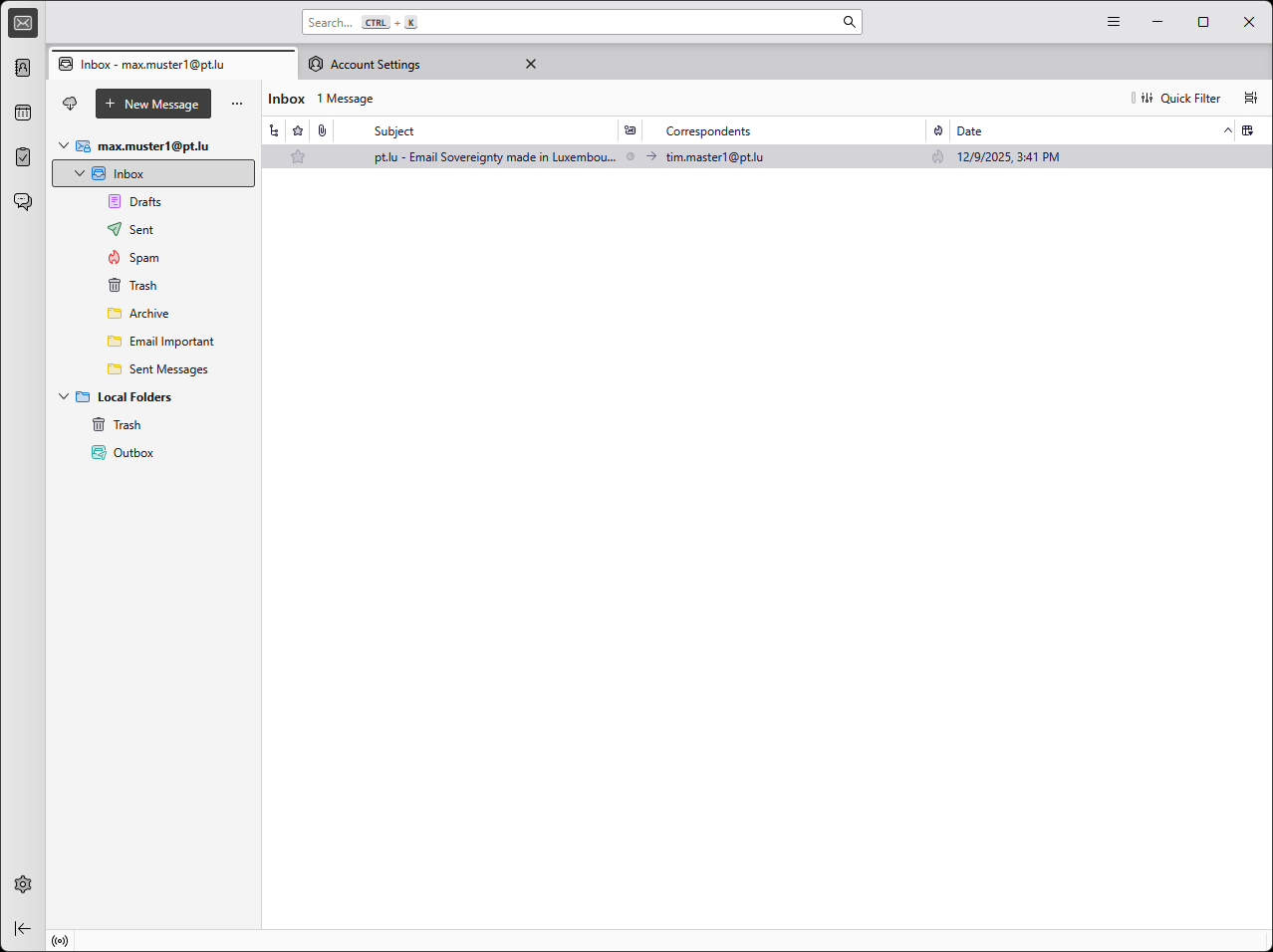
Step 1: Open Thunderbird
Start the Mozilla Thunderbird application on your computer.
Step 2: Add a New Account
- Click on “New Account” in the left menu.
- Select “Email”.
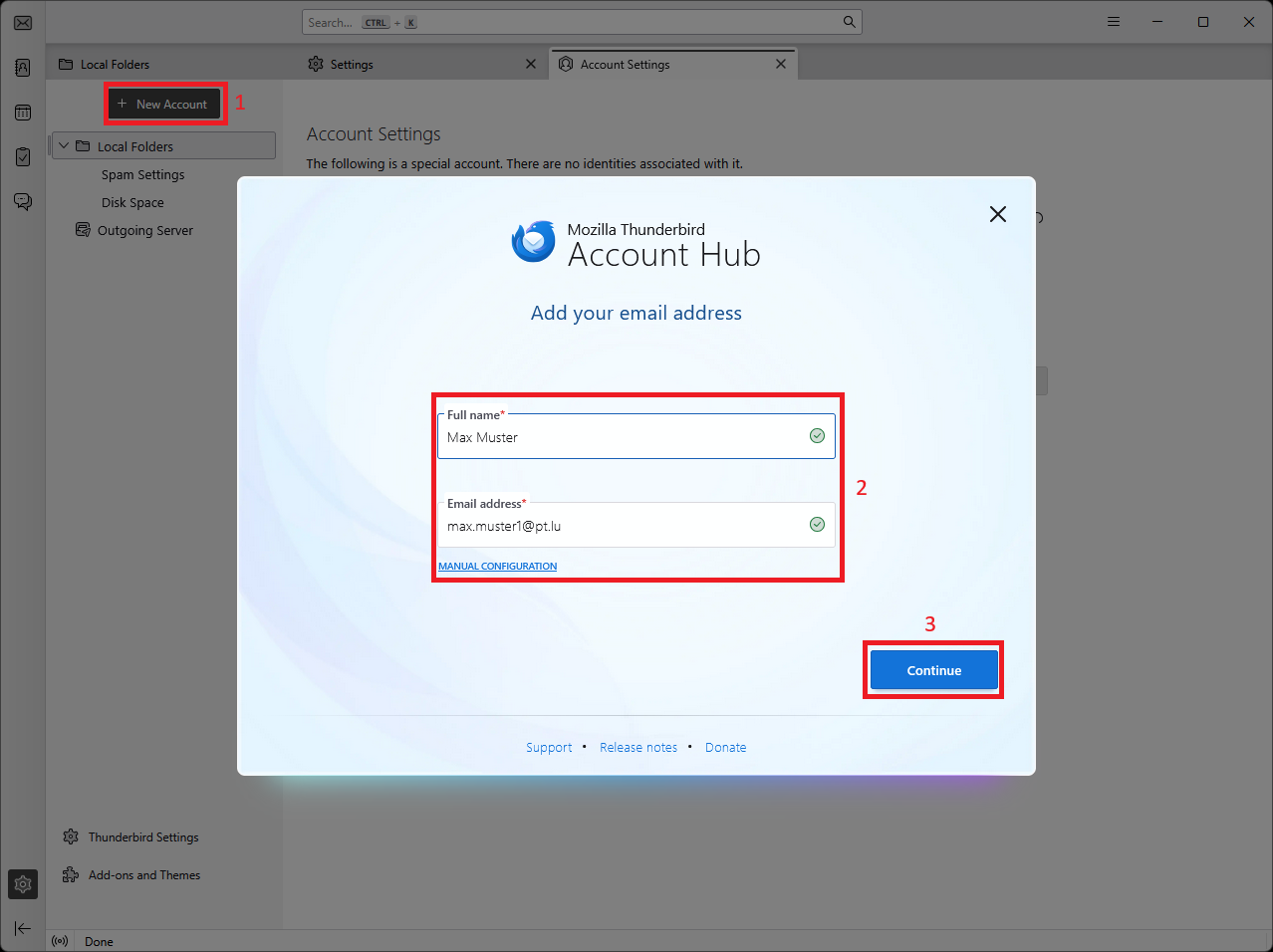
Step 3: Enter Your Details
- Type your full name (e.g., Max Muster).
- Type your email address (e.g., max.muster@1pt.lu).
- Click “Continue”.
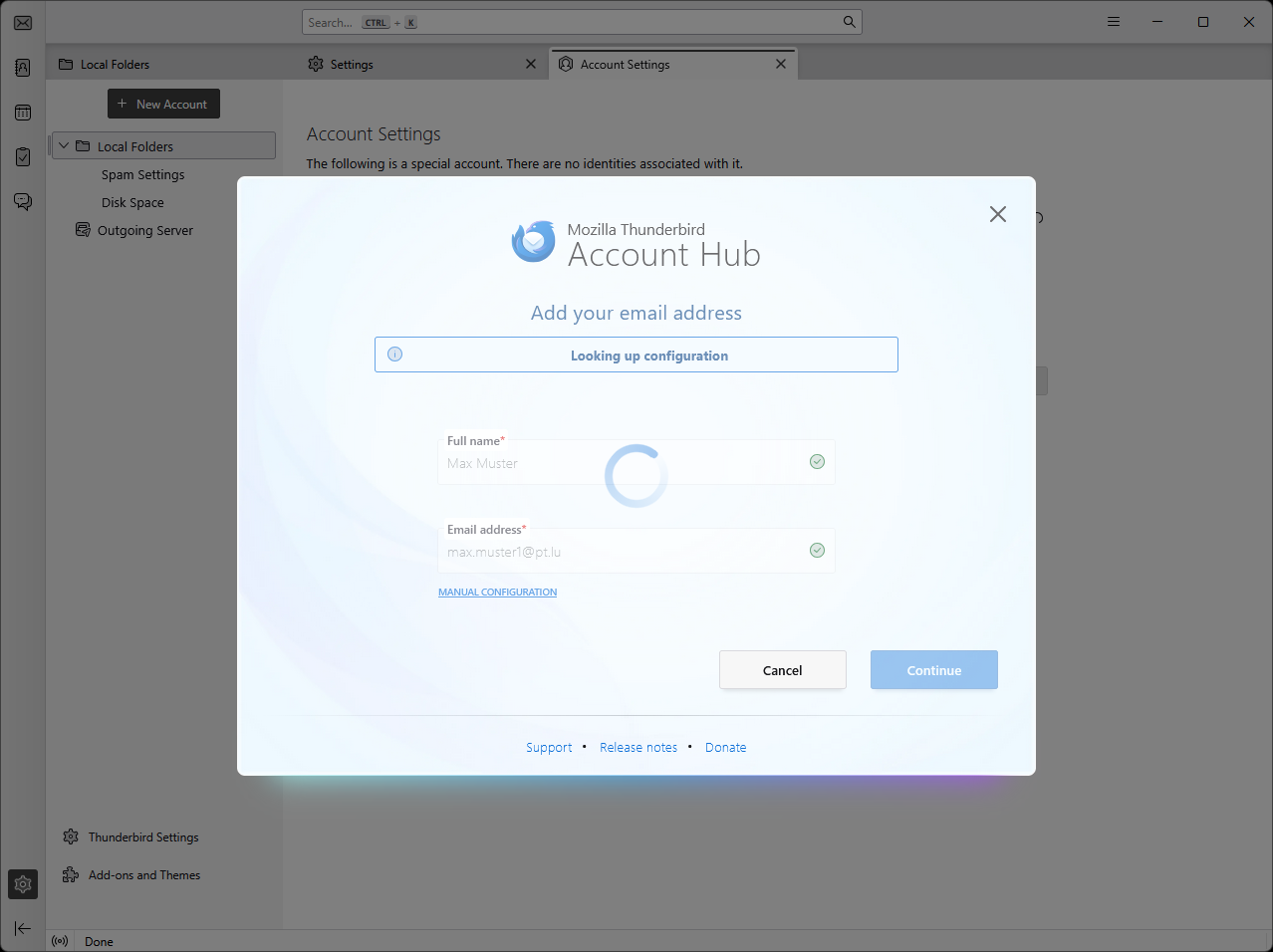
Step 4: Thunderbird Searches for Settings
- Wait while Thunderbird automatically finds the correct server settings.
- This may take a few seconds.
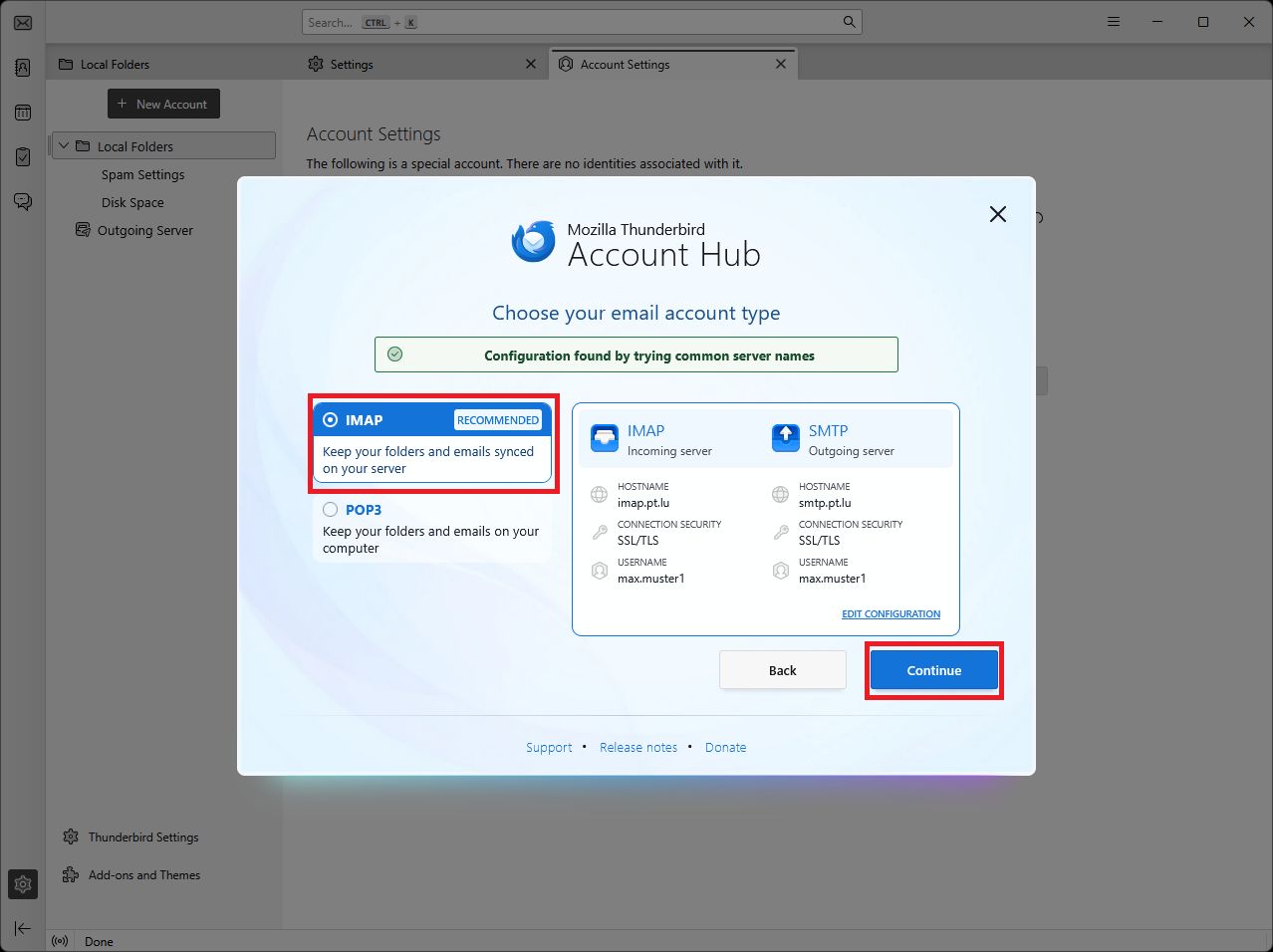
Step 5: Choose Account Type
- Select IMAP (recommended) to keep your emails synchronized across all devices.
- Click “Continue”.
Step 6: Enter Your Password
- Type the password for your email account.
- Check “Remember password” if you don’t want to enter it every time.
- Click “Continue”.

Step 7: Done!
- Your account is now set up.
- You can see your inbox and start sending and receiving emails.