Step 1: Locate the “New Outlook” Toggle
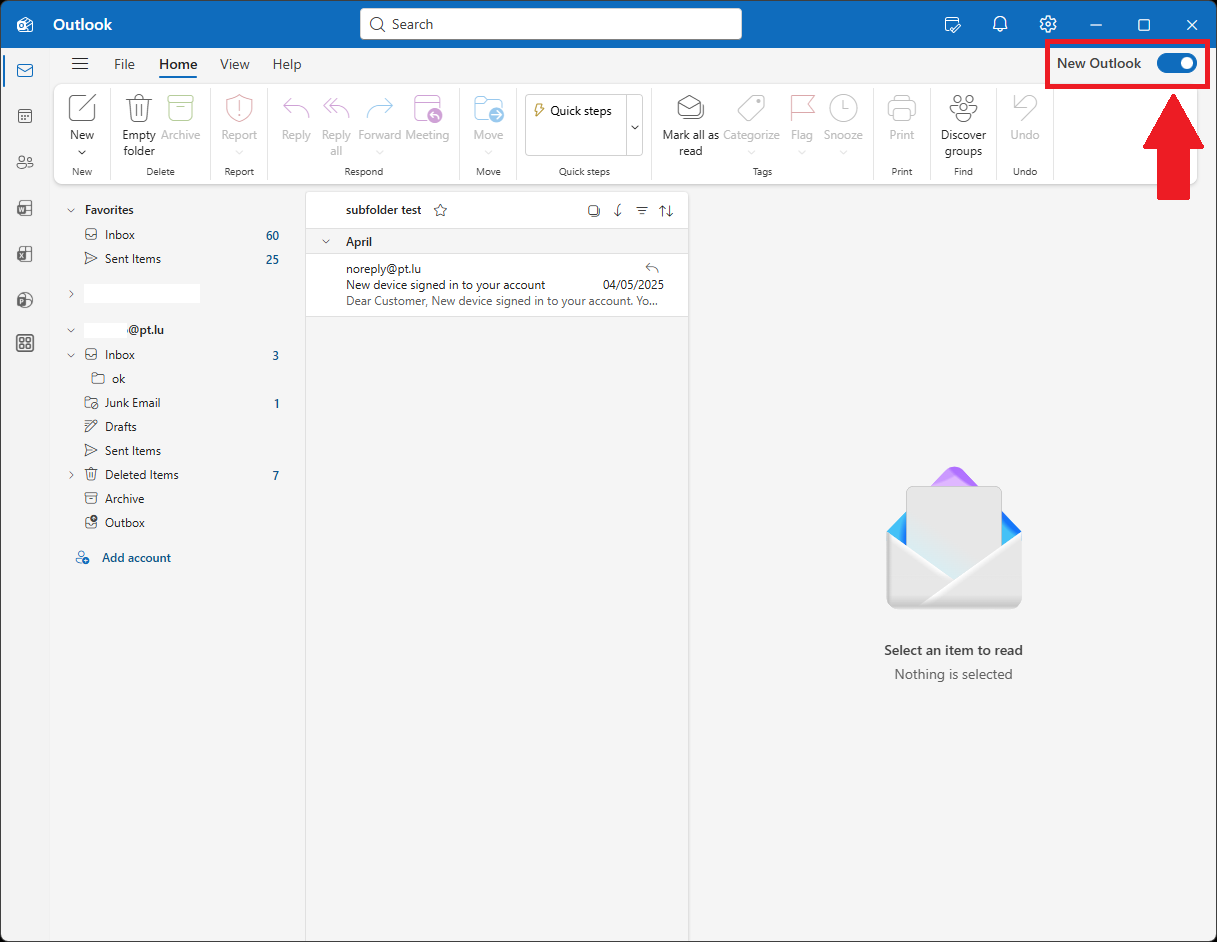
- In the top-right corner of your Outlook window, you will see a switch labeled “New Outlook”.
- If the switch is blue, it means you are currently using the new Outlook interface.
Step 2: Turn Off “New Outlook”
- Click the toggle to turn it off.
- This will start the process of switching back to the classic Outlook interface.
Step 3: Feedback Window Appears
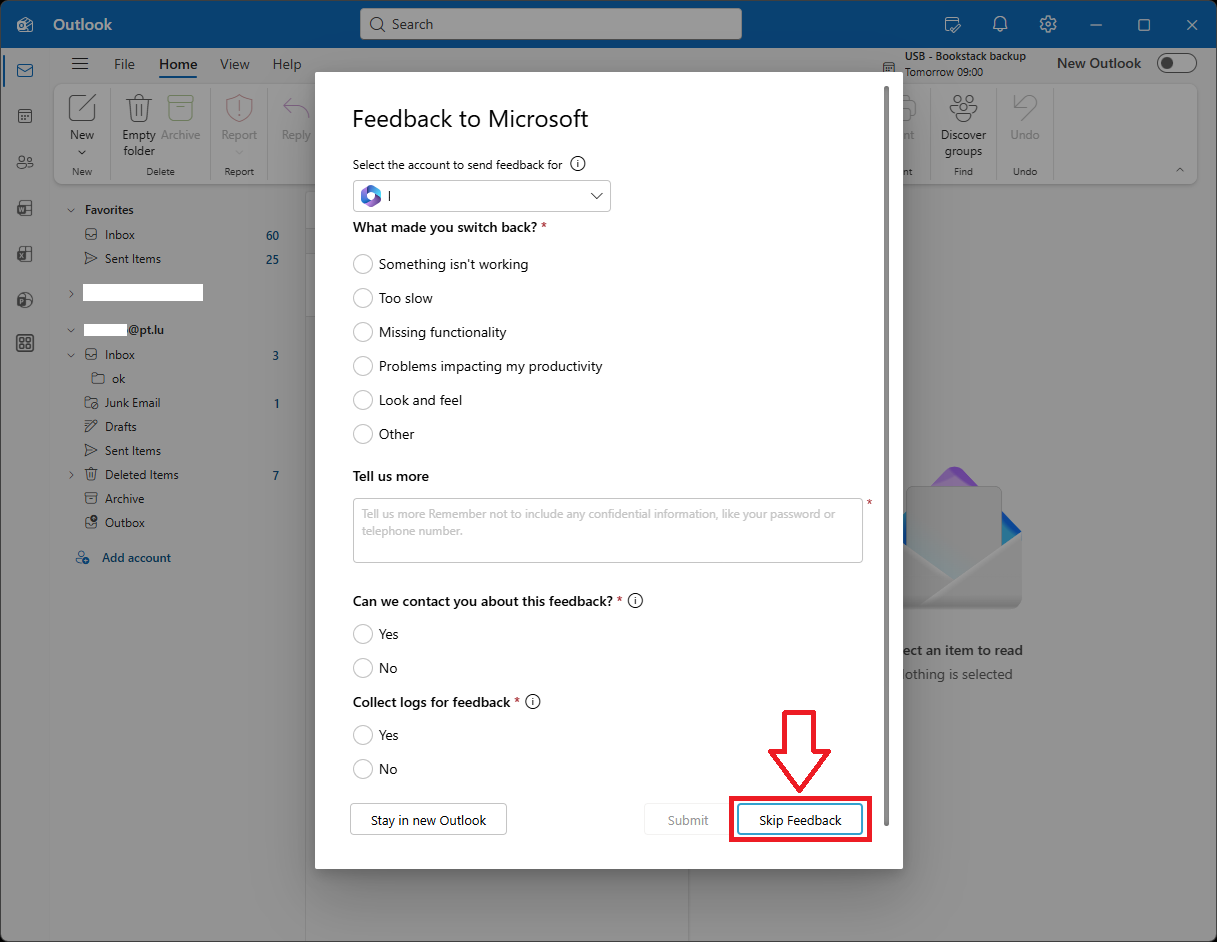
- A Feedback to Microsoft window will pop up.
- You can choose to give feedback or skip it.
Step 4: Skip Feedback
- Click “Skip Feedback” at the bottom right of the window.
- Outlook will now revert to the classic version.
✅ You are now back to the classic Outlook interface!